In a world where sharing moments is just a tap away, knowing how to take a screenshot on a Samsung tablet is essential. Whether it’s capturing that hilarious meme your friend sent or saving an important document, mastering this skill can make life a whole lot easier. And let’s face it, no one wants to be the person fumbling around, trying to explain something without visual aid.
Understanding Your Samsung Tablet
Samsung tablets offer various models that feature user-friendly designs and capabilities. Familiarity with the specific model enhances the user experience.
Different Models and Features
Samsung provides a range of tablets including the Galaxy Tab S, Galaxy Tab A, and Galaxy Tab Active series. Each model comes with unique features, catering to diverse user needs. For instance, the Galaxy Tab S series boasts high-resolution displays and powerful processors, ideal for multimedia tasks. In contrast, the Galaxy Tab A series focuses on affordability and family-friendly features. Features like S Pen compatibility, expandable storage, and long battery life also vary across models. Knowing the specific model helps in utilizing its capabilities to take screenshots effectively.
Importance of Taking Screenshots
Taking screenshots serves valuable purposes in everyday tasks. This skill helps capture vital information quickly, such as facilitating communication for work or education. Users often rely on screenshots to save and share important documents, images, or conversations. Social media interactions also benefit from screenshot capabilities, allowing users to retain engaging content. Additionally, taking screenshots can assist in troubleshooting by providing visual evidence for technical issues. Recognizing the importance of this function empowers users to take full advantage of their Samsung tablet.
Methods to Take Screenshots
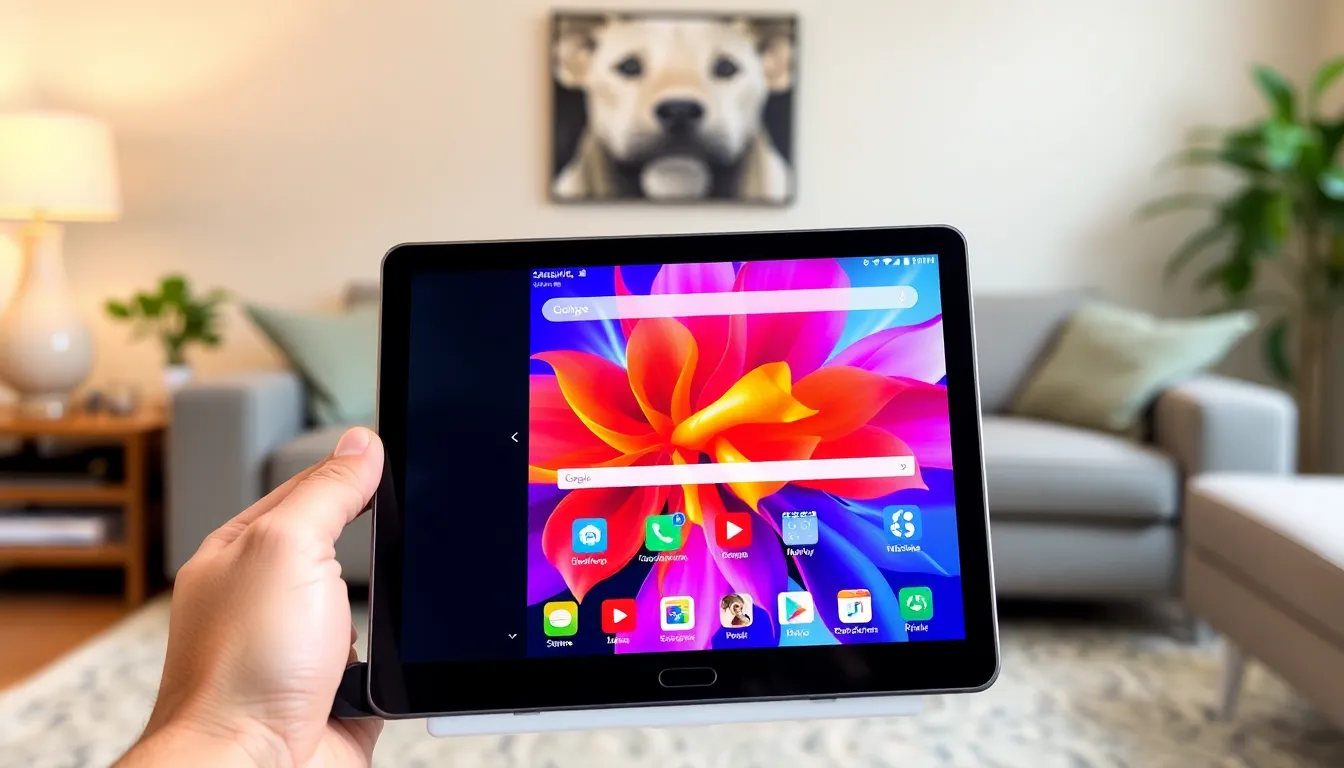

Many methods enable users to capture screenshots on Samsung tablets. Each option caters to different user preferences and device features.
Using Physical Buttons
To capture a screenshot using physical buttons, press the Power button and Volume Down button simultaneously. Hold both buttons for a moment to take the shot. Users will see a brief flash or hear a sound indicating the screenshot was successful. Access the screenshot in the Gallery app or the notification bar for easy sharing. It’s efficient for quick captures, especially when multitasking or needing a fast response.
Using the S Pen
Users can utilize the S Pen to take screenshots effectively. By hovering the S Pen over the screen, they can activate the Air Command menu. Selecting “Screen Write” allows immediate drawing or annotation on the captured image. After marking up the screenshot, users can save or share it with ease. This method is particularly helpful for those who need to highlight specific information or add notes directly to the capture.
Using the Quick Settings Menu
Accessing the Quick Settings menu provides an alternative way to take screenshots. Swipe down from the top of the screen to open the menu. Tap the “Screenshot” icon for a quick capture of the current display. This method offers convenience for users who prefer touch navigation over button combinations. Captured screenshots can also be found in the Gallery app for later reference.
Tips for Editing and Sharing Screenshots
Editing and sharing screenshots enhances their usefulness. Several tools make it easier to personalize screenshots before sharing.
Basic Editing Features
Samsung tablets offer built-in editing tools for screenshots. Users can crop images, adjust brightness, and add text annotations. Selecting the pencil icon allows for drawing directly on the captured image. Erasing unwanted marks is straightforward with the eraser tool. Additionally, resizing portions of the screenshot improves focus on essential elements. These basic editing features provide quick customization, making the screenshots more relevant and engaging.
Sharing Options
Sharing screenshots from Samsung tablets is simple and versatile. Options include sharing through messaging apps, social media, or email. The Gallery app provides easy access to screenshots for immediate sharing. Users can select multiple images to send at once, streamlining the process. Furthermore, using the “Share” feature allows users to choose from installed applications, increasing flexibility. Sharing screenshots enhances communication, allowing for effective collaboration and quick sharing of vital information.
Common Issues and Troubleshooting
Understanding common issues and troubleshooting methods for taking screenshots on a Samsung tablet can enhance the user experience. Users may encounter challenges that can be quickly resolved with the right approach.
Inability to Take Screenshots
Users might not be able to capture screenshots due to specific settings or device issues. Checking the device’s storage availability often reveals that insufficient space can hinder screenshot functionality. Verifying that the tablet’s software is up to date addresses potential compatibility problems. Users should also ensure that the screen isn’t in a protective mode, like a screen sharing or zoom function, as this can block the screenshot option. Restarting the device frequently resolves unexpected glitches, restoring screenshot capabilities.
Screenshot Quality Issues
Captured screenshots may sometimes appear blurry or pixelated. This commonly occurs if the screen resolution settings are not optimized for the device. Checking the display settings for clarity options can significantly improve the quality of screenshots. Users should also avoid taking screenshots of rapidly changing content, which may result in incomplete images. When capturing screenshots, it’s essential to give the tablet a moment to process the image to ensure better quality. If issues persist, reinstalling or resetting image editing apps may help restore functionality.